OnPay Integration
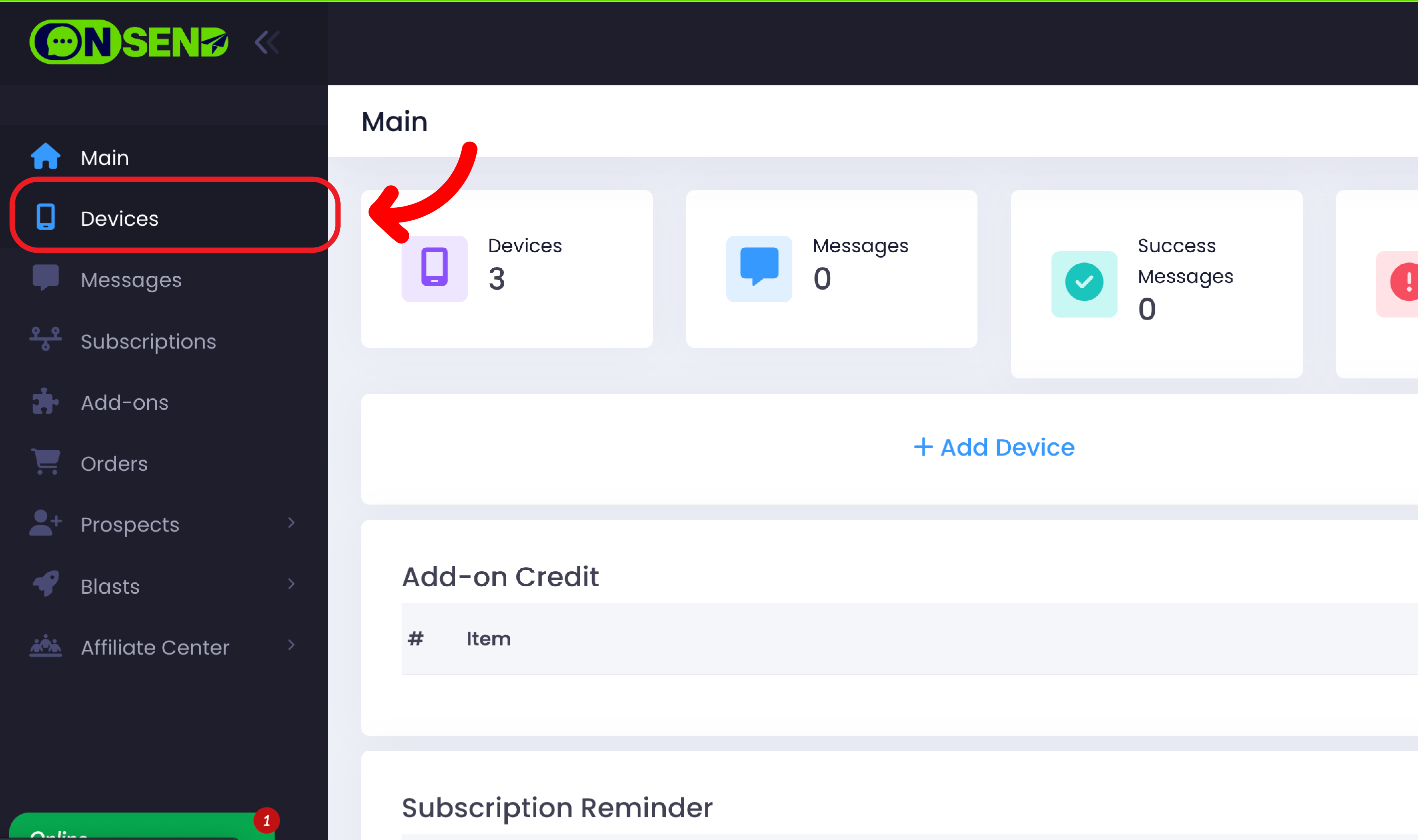
Login to your account, click on "Devices" tab.
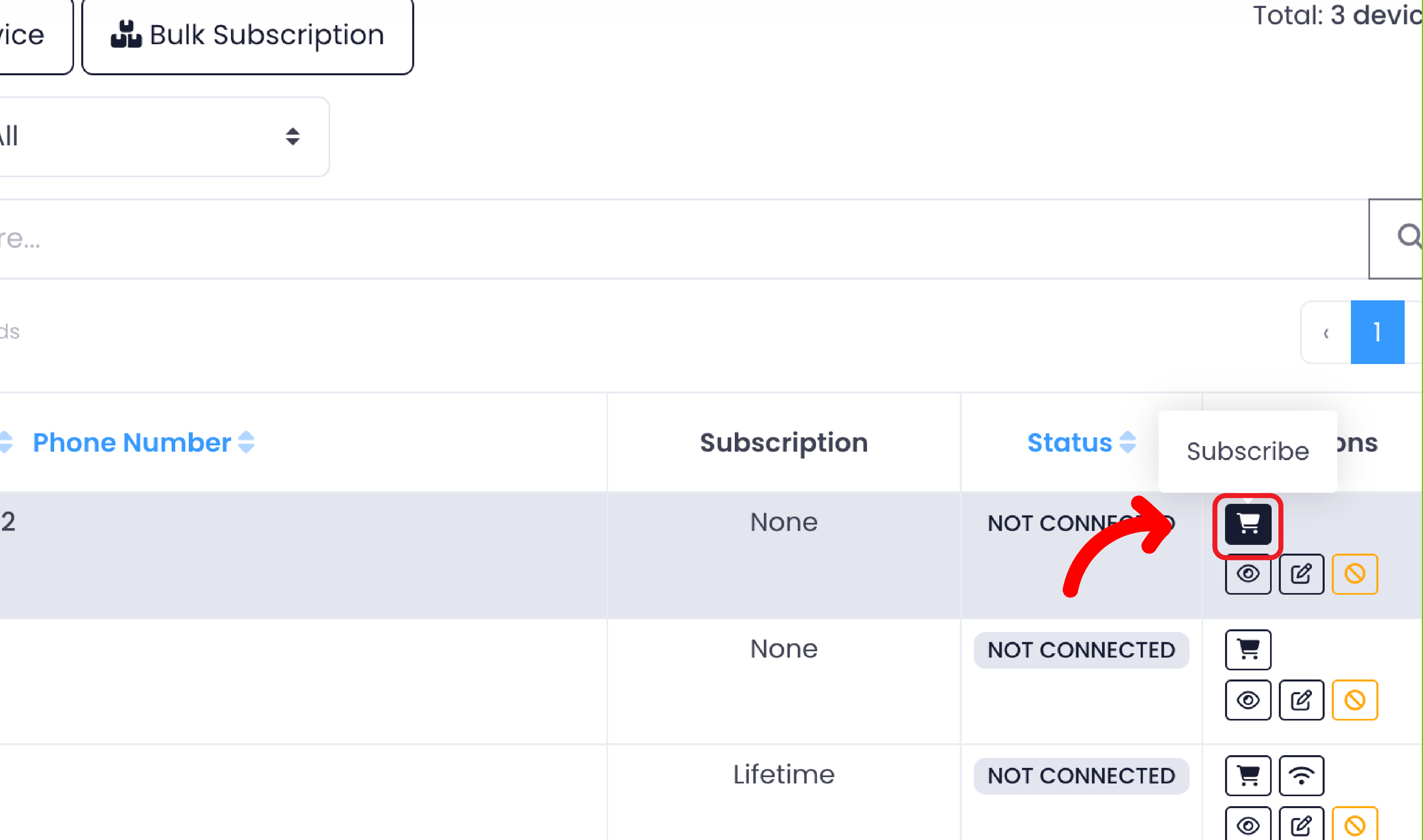
On your device list, click "Subscribe" button.
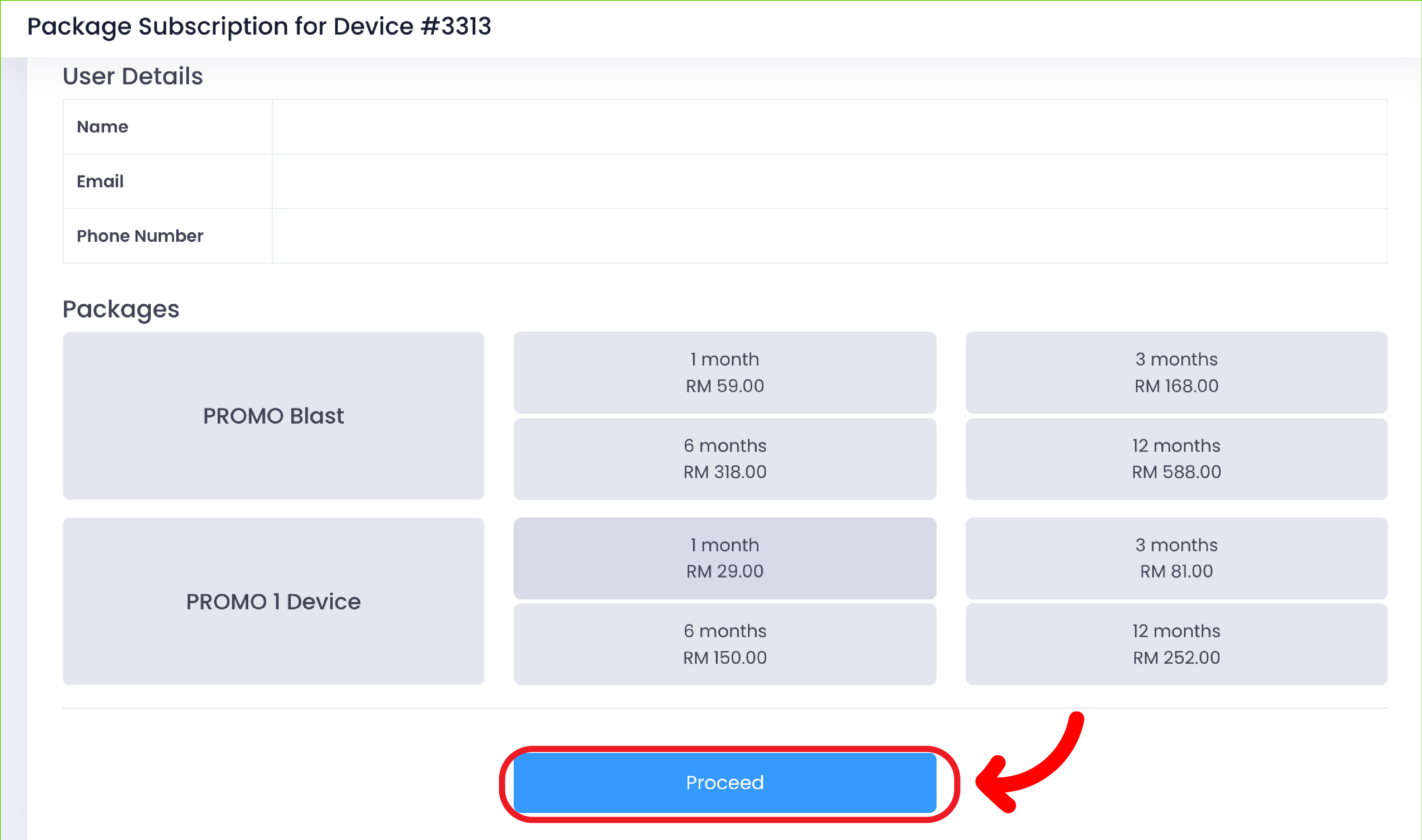
Here are the packages offered & click the "Proceed" button to continue with payment.
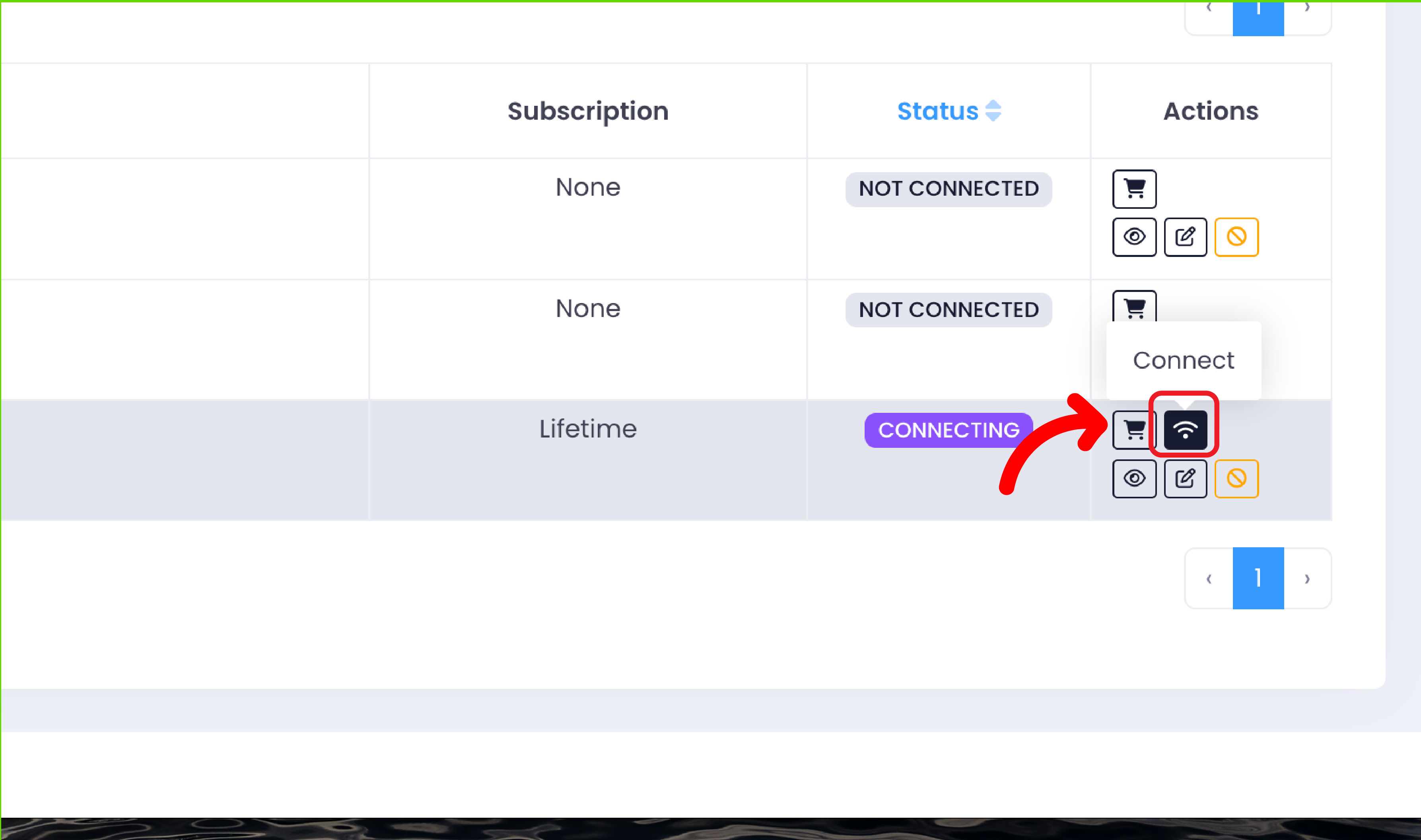
Once the payment is completed, click the "Connect" icon to link the device.
The QR code will appear as shown below. Please scan the code through your WhatsApp settings at:
Settings > Linked Devices > Click the Link a Device button.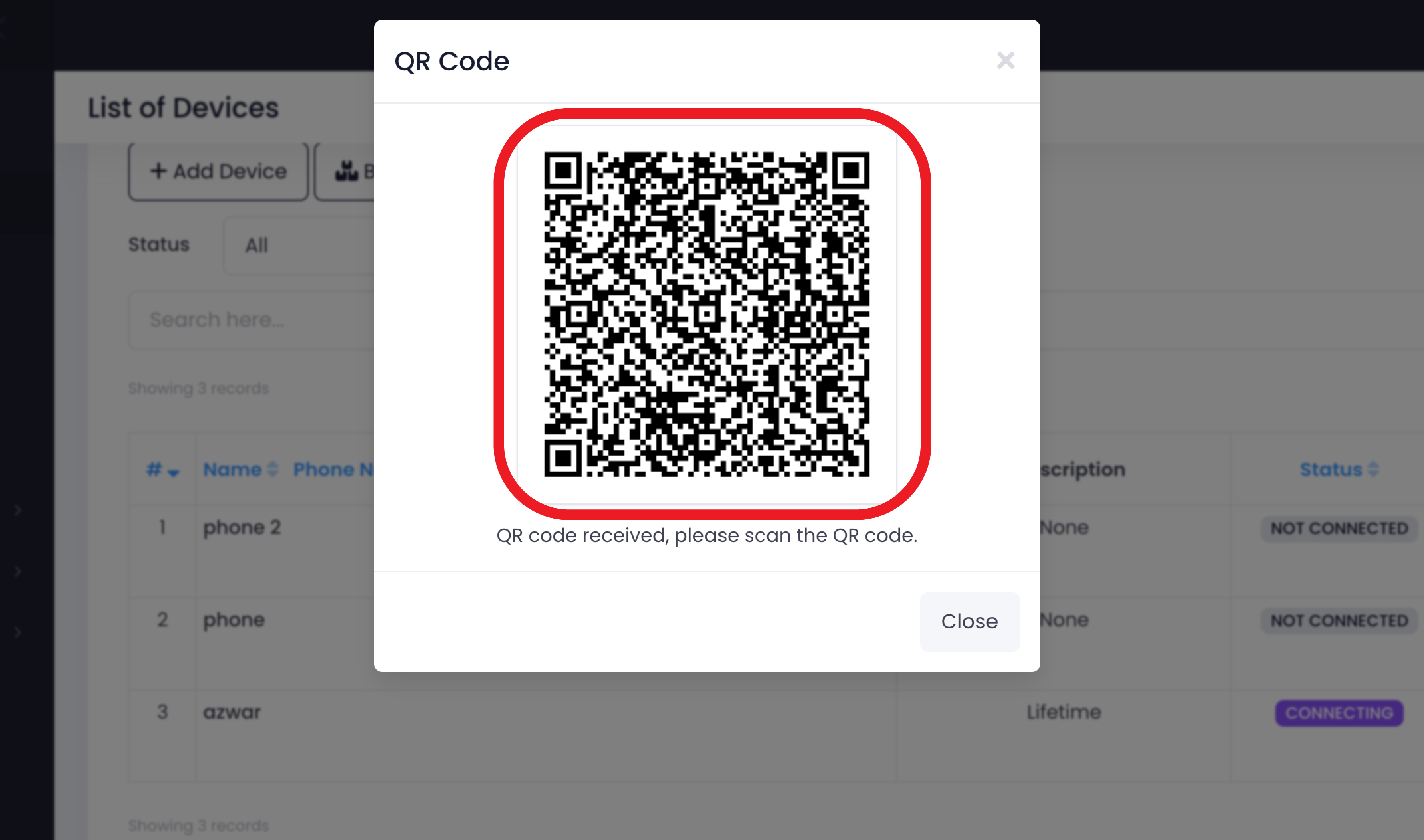
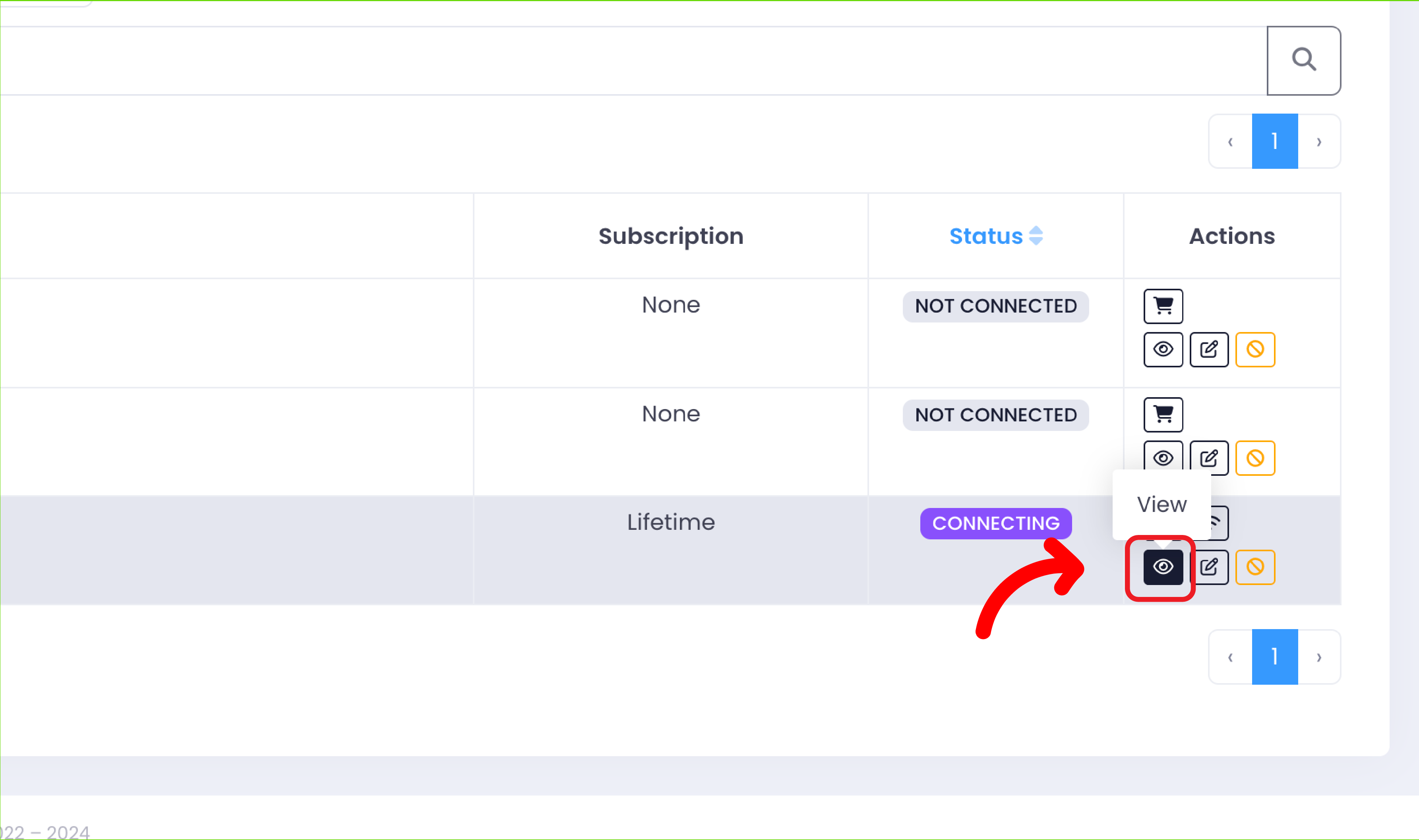
Ensure your device status is "Connected" as shown below & Click the "View" button.
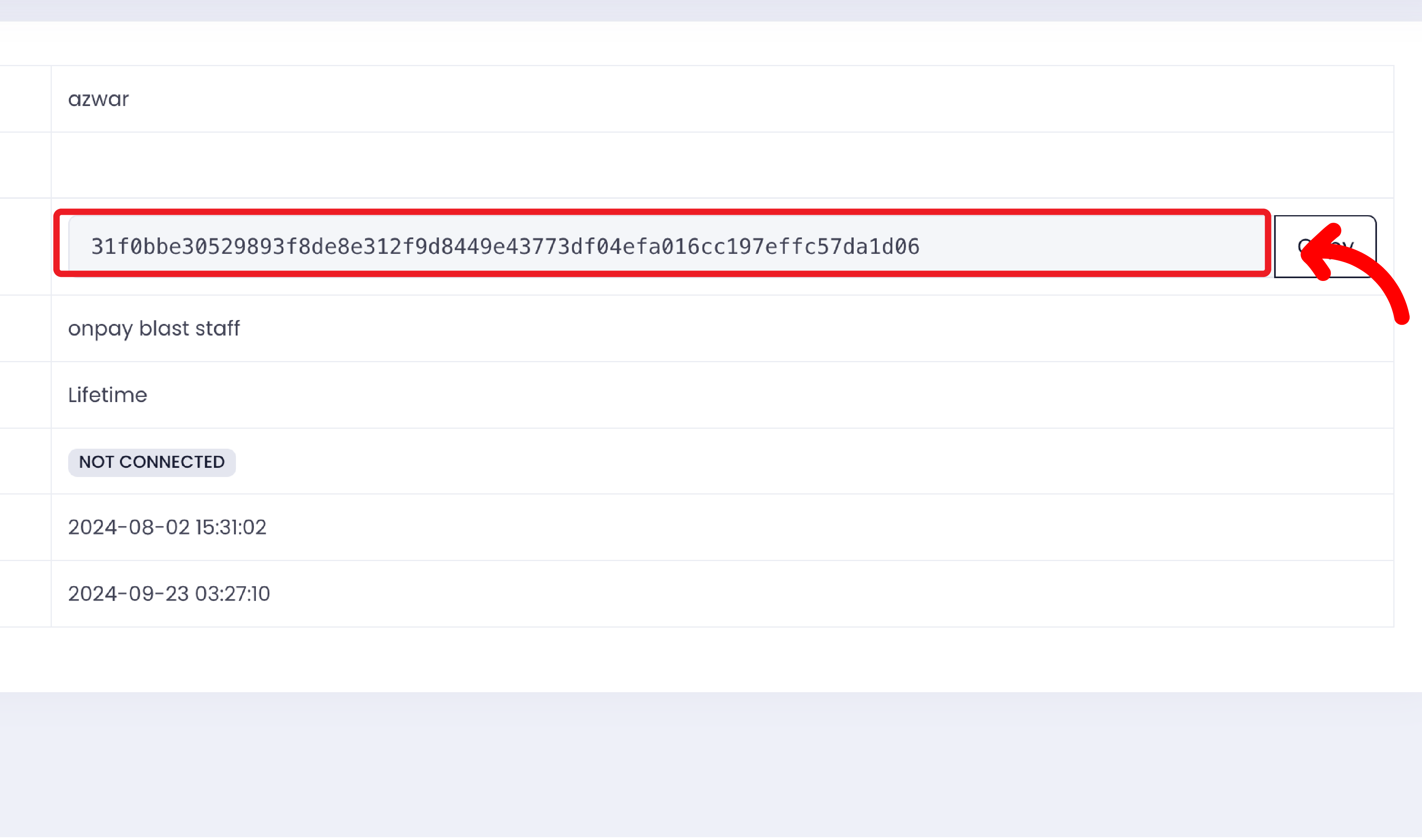
Please copy your device token to use in your OnPay account settings.
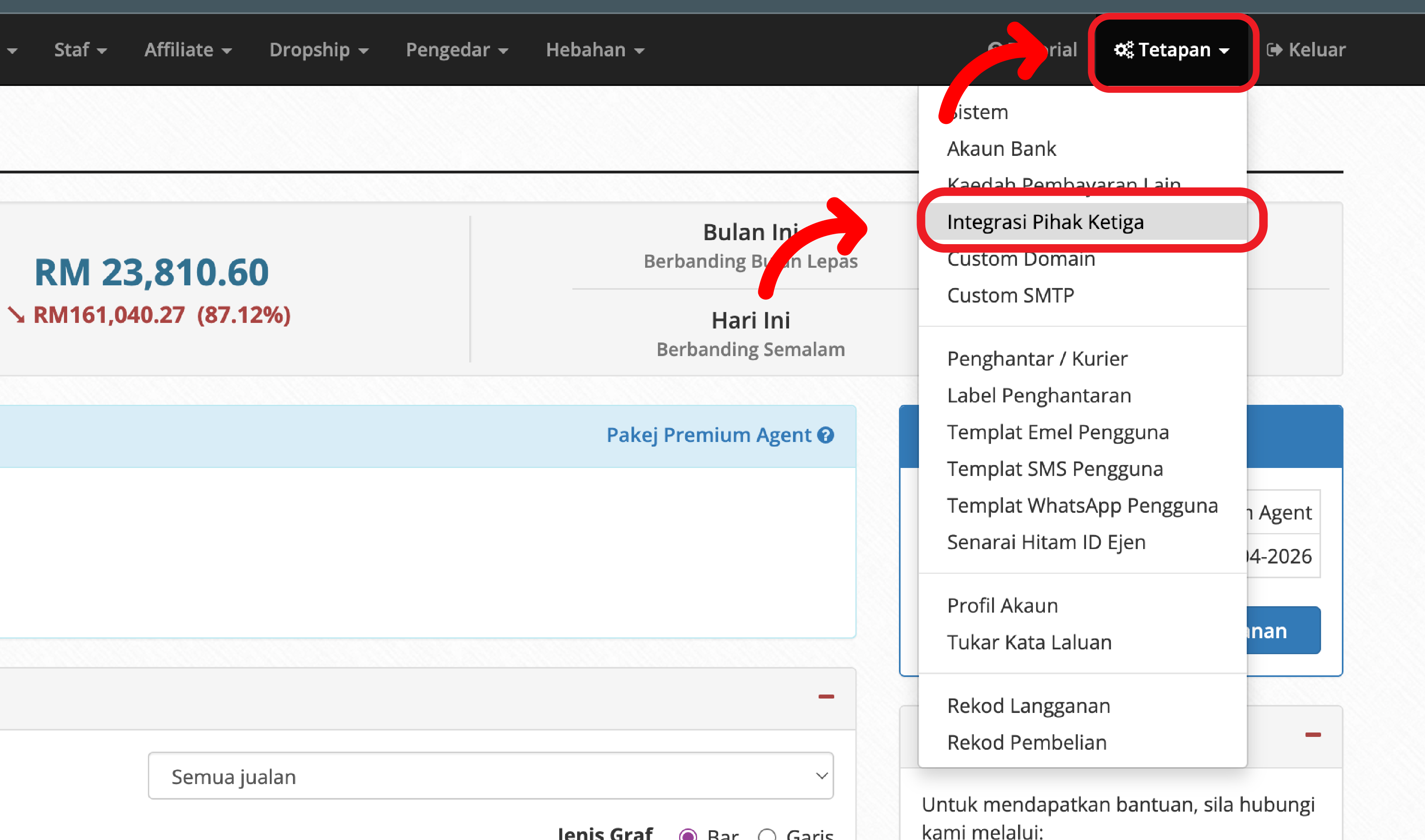
Login to your OnPay account & Click the Settings Tab, then select Third-Party Integration.
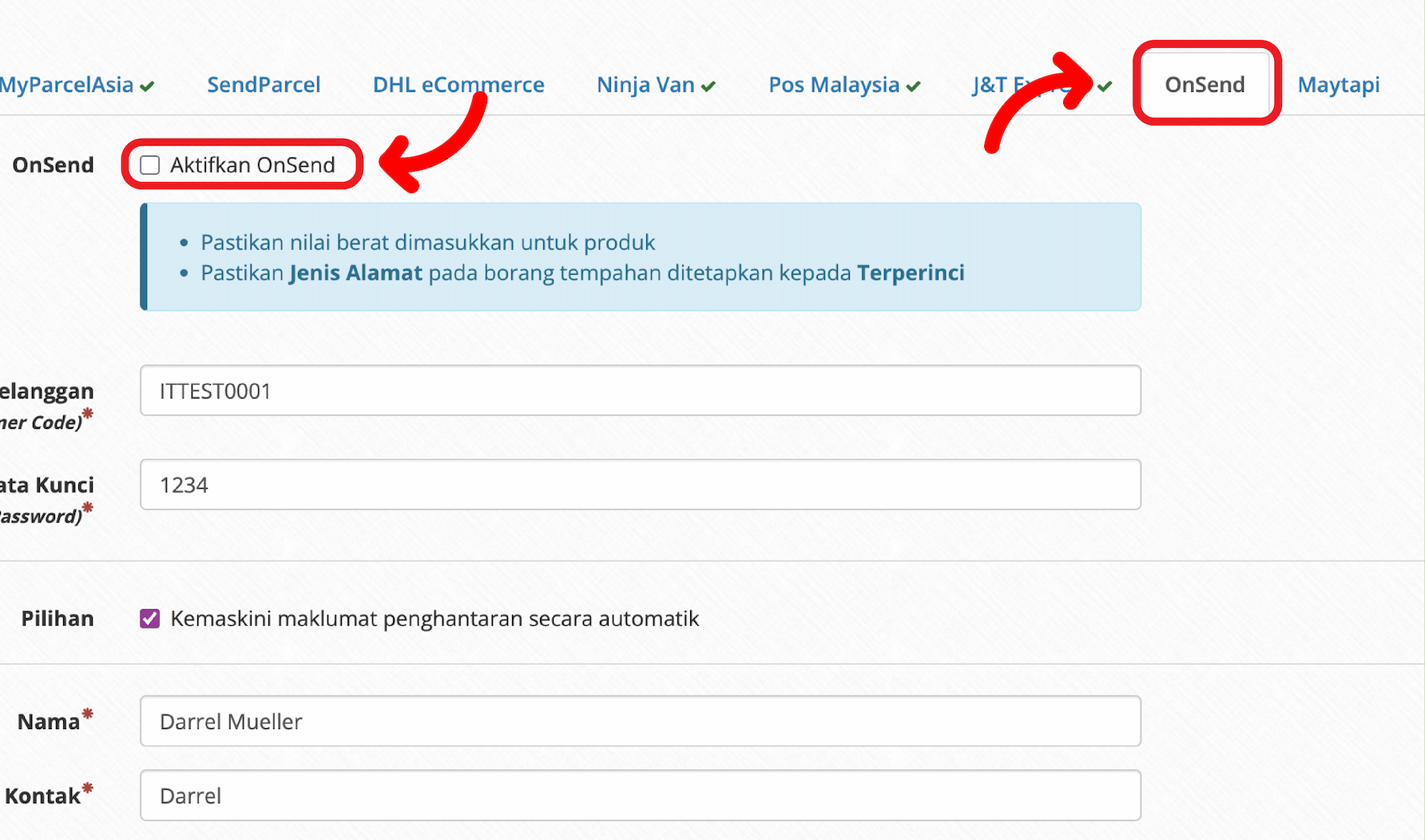
Then, click the "OnSend" tab & check the "Activate OnSend" box, fill in the Device Token and click "Save".
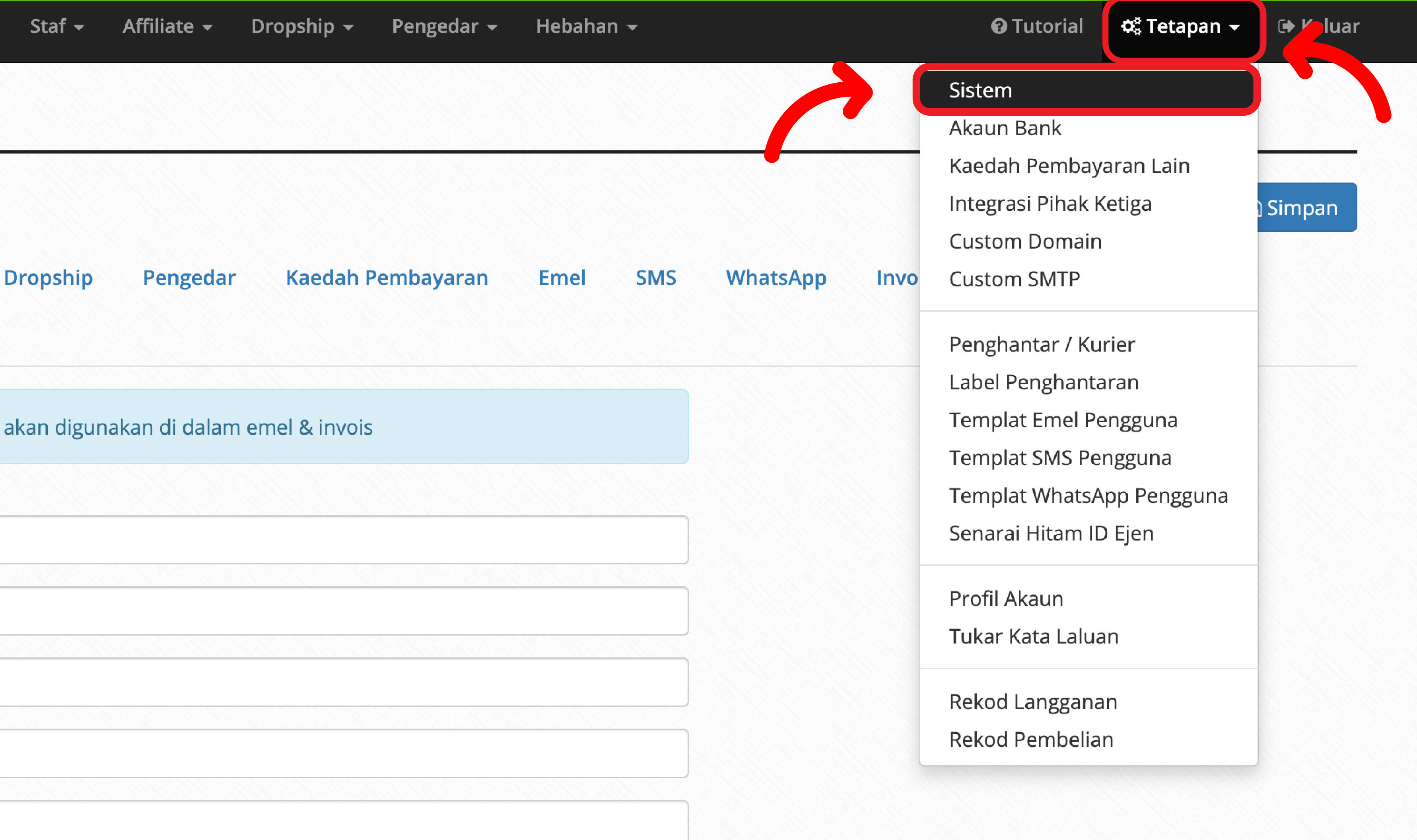
Next, click the "Settings" Tab and select "System".
Click on "WhatsApp" tab and mark on "OnSend".
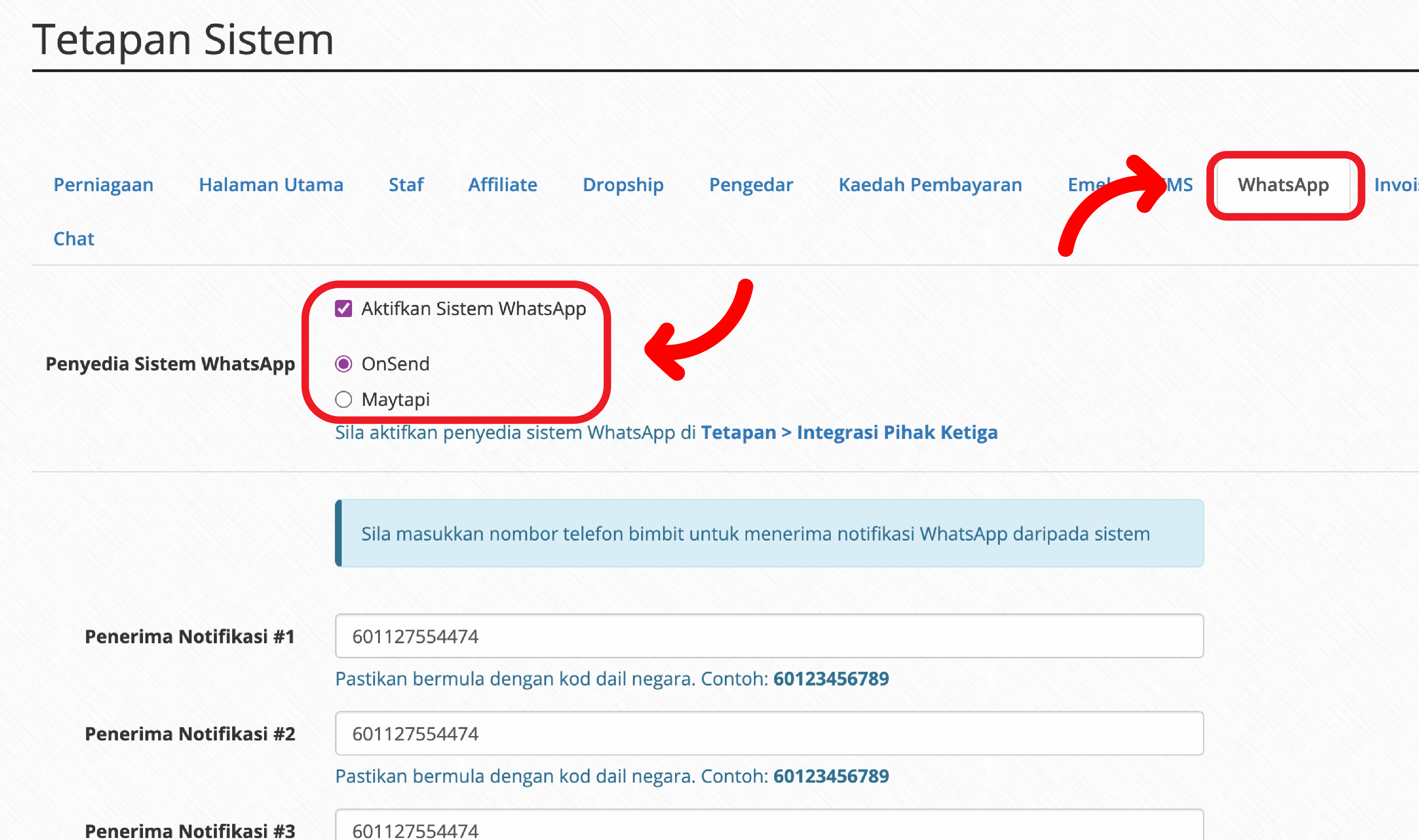
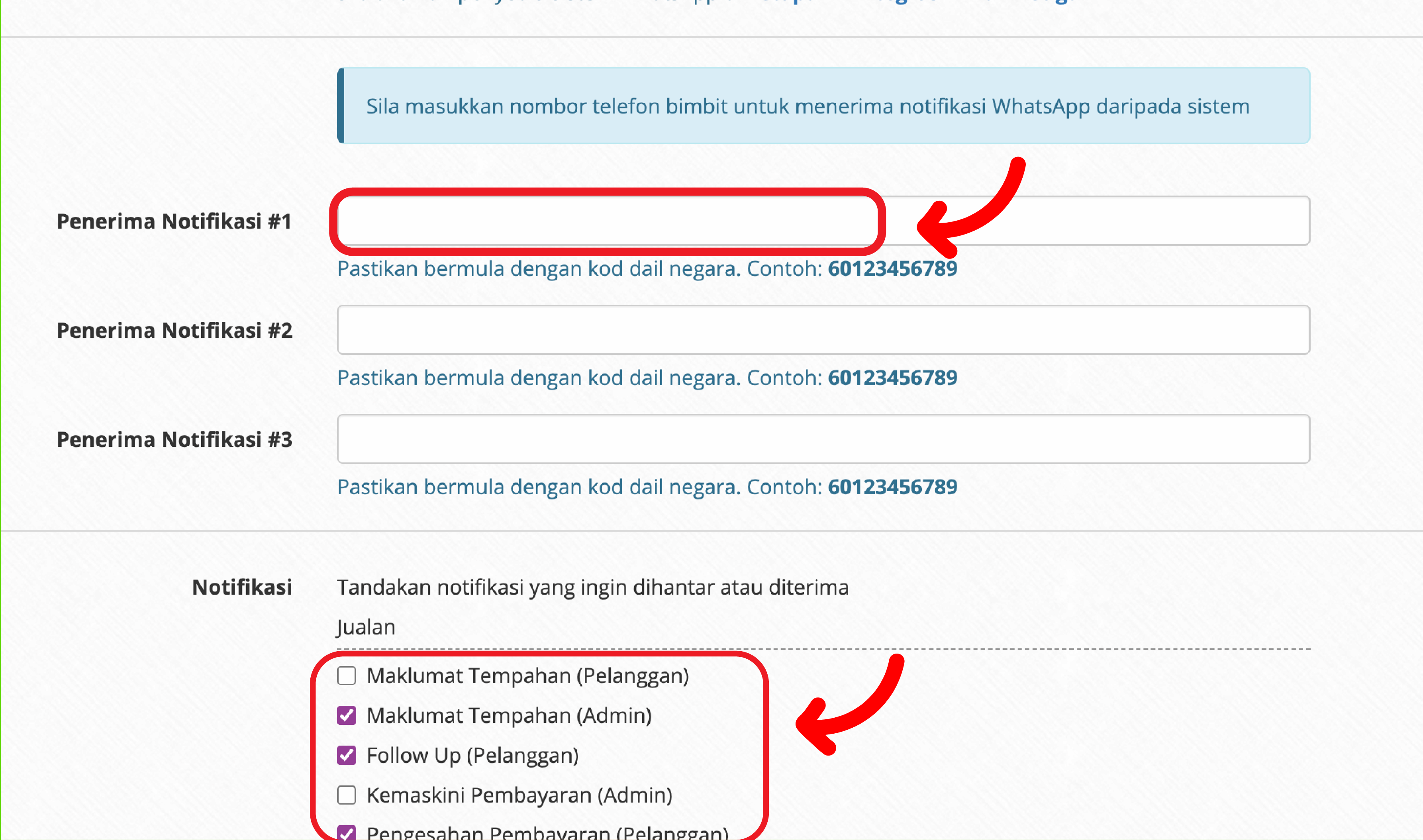
Enter the recipient's phone number for notifications and mark the notifications you wish to send or receive according to your preference. Then, click "Save".